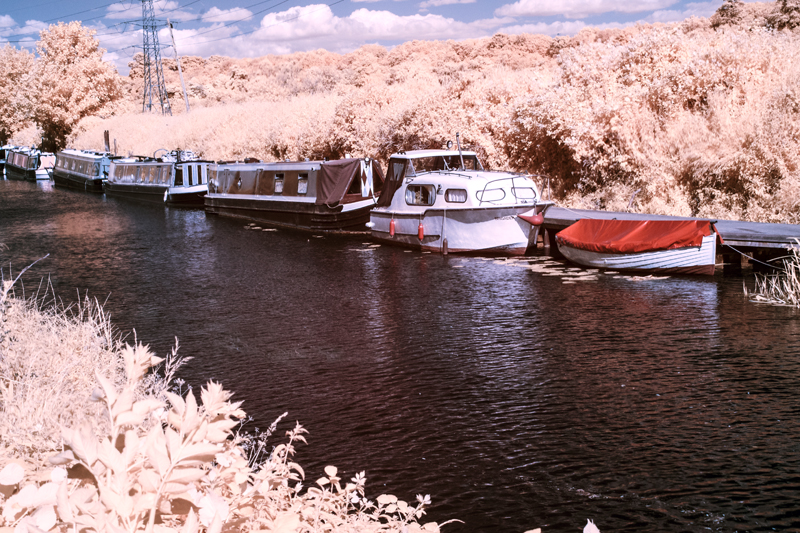
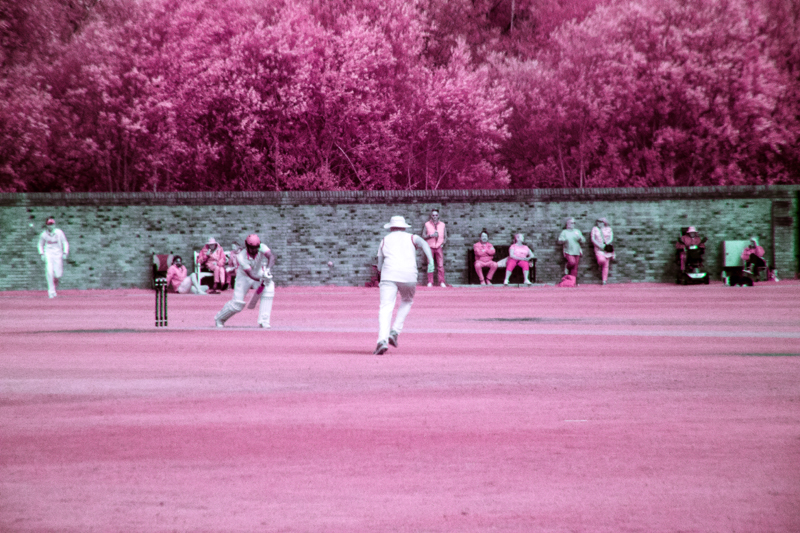
I said in my last post that I would post some of my infrared photographs that I have processed as colour. Here is a selection, firstly from the camera that had been converted with a 720 nm filter over the sensor, then from the full-spectrum camera with a selection of filters fittted to the front of the lens.
Canon 350D – Converted Camera:-
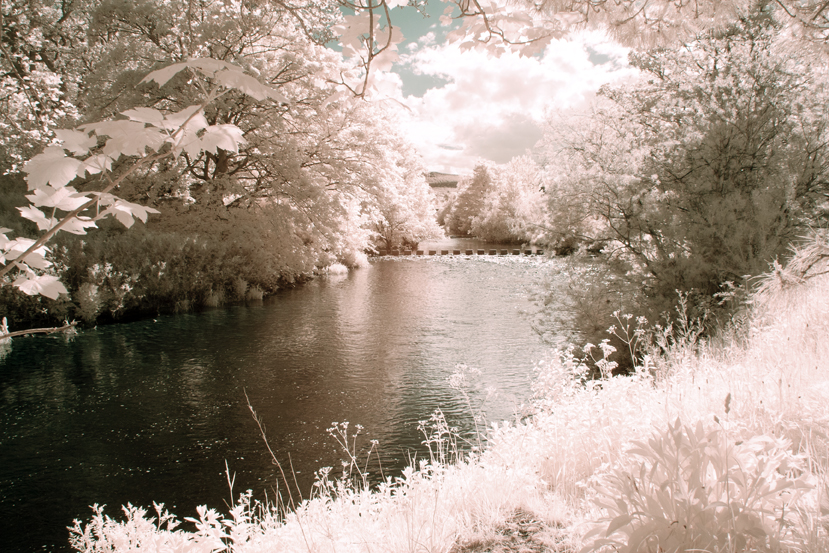
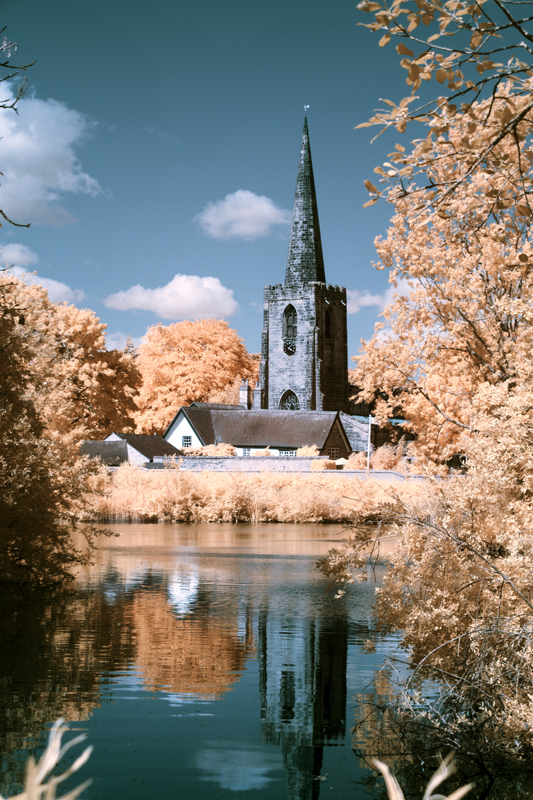
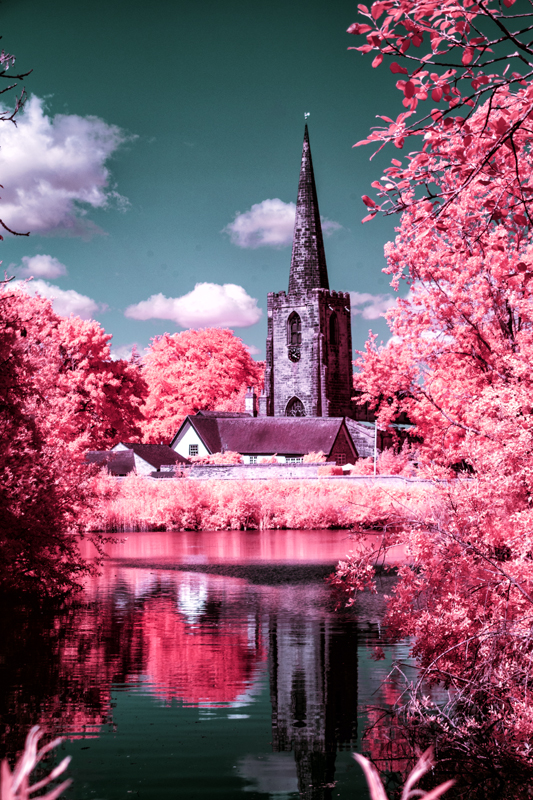
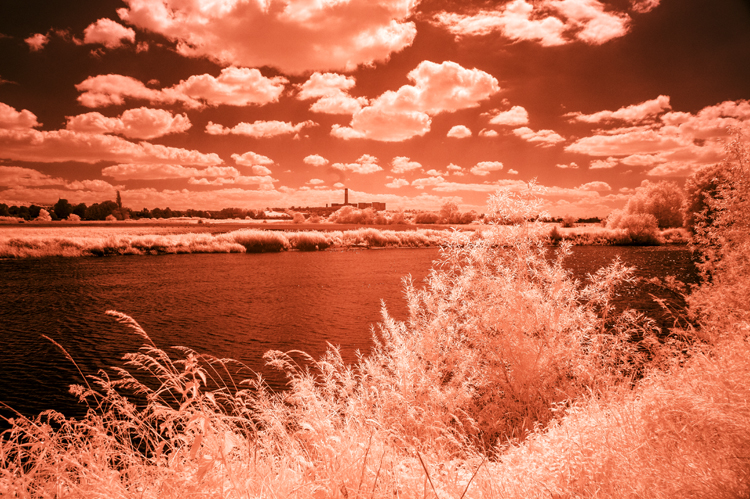
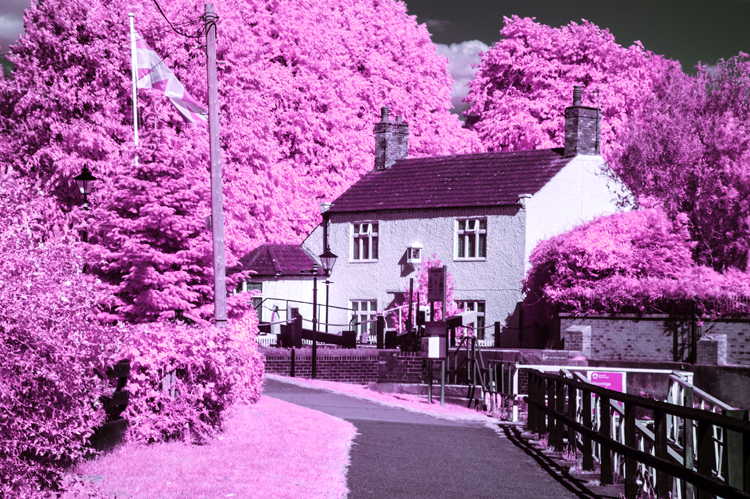
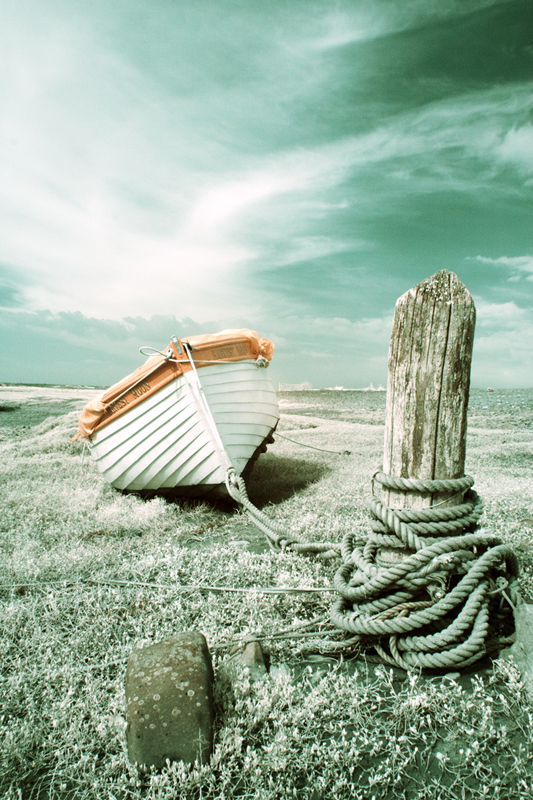
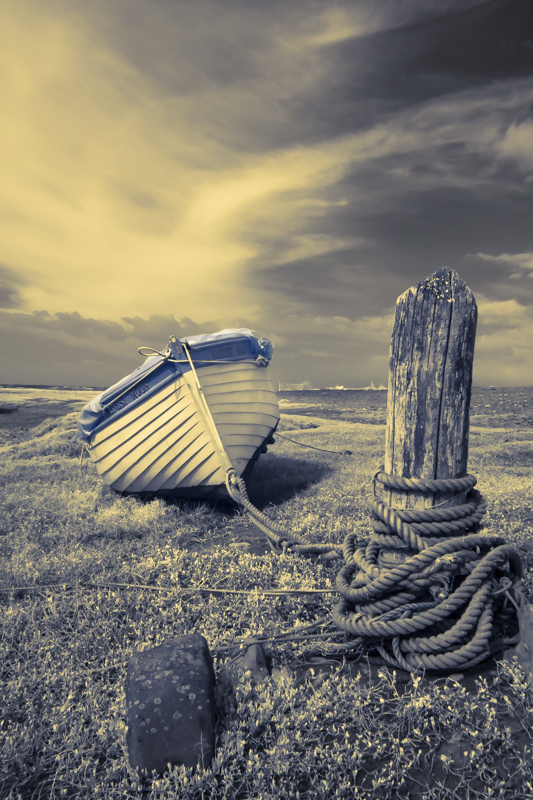
The above two images are the same original image. The first one was processed using channel mixing and layers and the second one shows what happens when you then adjust the hue – in this case plus 163.
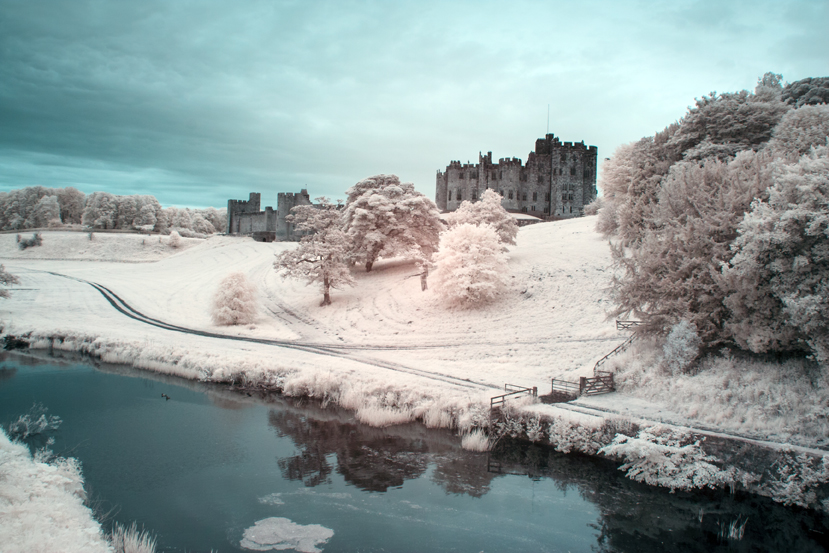
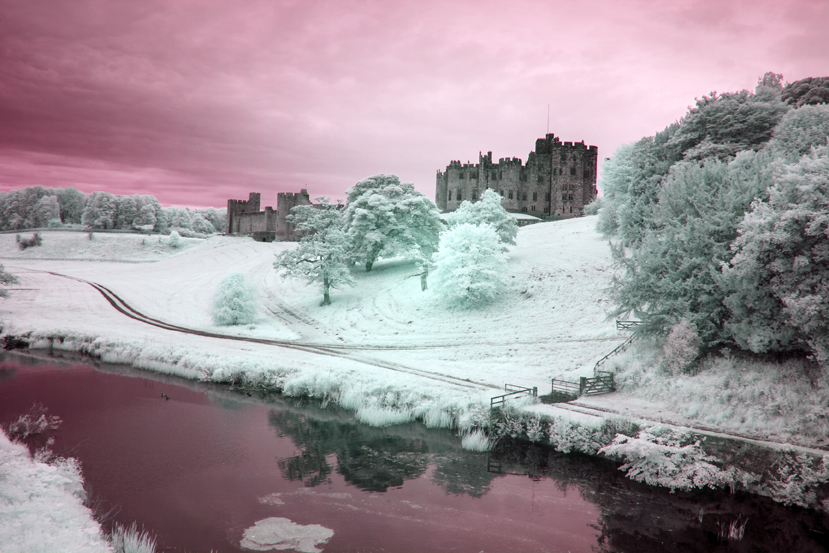
I have done the same with the next two images of Alnwick castle – first the one without hue adjustment and the second one with a positive adjustment of about the same magnitude, although, a small negative or positive adjustment can make quite a difference and I would urge you to experiment.
Full Spectrum Camera with Variable Filter.
530 nm:-
Hue minus 50No Hue Adjustment.Hue minus 50No Hue AdjustmentHue +/- 180
Filter set to 640 nm (approx):-
No Hue AdjustmentNo Hue AdjustmentHue minus 28
You will notice that there is more of a red tone predominately in the originals – turning the trees orange instead of yellow as with the 530 nm filtration.
750 nm:-
No hue adjustmentConverted to Black and White
With the 750 nm filter there was not much scope for hue adjustment because very little visible light was getting in, mostly infrared. I could have added a bit more contrast to the monochrome image but there was little hope of getting much of value with the channel mixed version.
850 nm Filter:-
Channel MixedConverted to Black & White
As with the 750 nm filter there was no scope for bright and colourful images but with the mono conversion, I got a beautifully contrasty image.
It occurs to me that to get coloured “infrared images” we have to let a bit of visible light in too and experiment with the image using a myriad of adjustments using channel mixing, layers, curves to mention a few, to suit your individual taste. So far, I have only given you the basic version of channel mixing. Some mixes involve adjusting the green slider, having different mixtures of the red and blue channels or a combination of all these. Even then you are just scratching the surface. I mentioned Rob Shea a few posts ago, he provides a whole range of Camera Profiles for different cameras. He also provides a wide selection of Photoshop Actions which can be imported into Photoshop – instead of making the adjustments of Channel Mixing, Layers and other adjustments, you click on an “Action” and the effect of several adjustments are applied in one click. Follow these links for more:-
There are full instructions on his site on how to install these resources andyou can have them and much more for the price of giving him your email address. I have them and in terms of the Photoshop Actions, a good way of finding out about the many adjustments that you can try out and provide a quick way of finding out which adjustments and effect you like.
I must say at this juncture that I have no connection to Rob Shea except I follow him on Instagram.
That is all for today folks. I hope that you will be back soon.
Today, I’m not going to talk about which make or model of camera to use for infrared photography but instead talk mostly about conversion types for infrared photography (or using an unconverted camera) and my variable experience of the different pros and cons of each.
I started out with a Canon 350D (or Rebel XL) DSLR in which the filter over the sensor, which most digital cameras have, to limit the light falling onto the sensor to the visible spectrum (380 nm to 790 nm), had been removed and replaced with a filter which limits the light that falls onto the the sensor to around 720 nm and above in the near-infrared spectrum – in the case of infrared photography, we are usually interested in the range 700 nm to 900 nm. This is a permanent change, you create a custom white balance for your camera and off you go taking photographs. I always recorded .TIFF files and processed them in lightroom. In the early days, I processed them as black and white, usually by turning down the saturation and increasing the contrast – there are better ways of doing this but perhaps I’ll keep that for another post. Recently, I have gone back and re-edited some of these images as described in my previous post using Lightroom and Photoshop – channel mixing, layers, curves after creating a Camera Profile. I was really quite pleased with the results. I thought that they were “special and different” and perhaps some of them were of commercial value but the file sizes were a little small (10 Megapixels camera) for my uses so I went on the hunt for a converted camera with a higher pixel count, what I discovered was a Full-Spectrum camera (at over 20 megapixels).
A full spectrum camera has had the filter removed that limits the light hitting the sensor to the visible range and instead, a clear filter is placed over the sensor – or in some cases, no clear filter is used. This camera can “see” everything from ultra-violet to well into the near-infrared spectrum. The filter that was removed also stops the blue end of the spectrum. It can be used without additional filters but tends to render as very blue once the custom white balance is set. To record our “infrared images” we need to put a filter over or under the lens to choose which frequencies of light we want to record. This is where the fun begins because this camera has much more flexibility but you have to buy filters to take advantage of that.
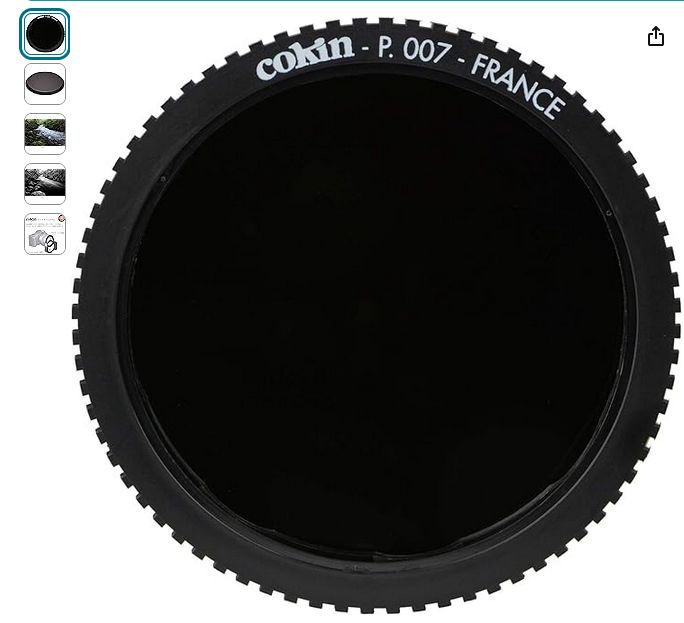
I first bought a Cokin P007 Infrared 720 nm (89 B) round filter. This filter is used in front of the lens as part of the Cokin P series filter system which I already owned.
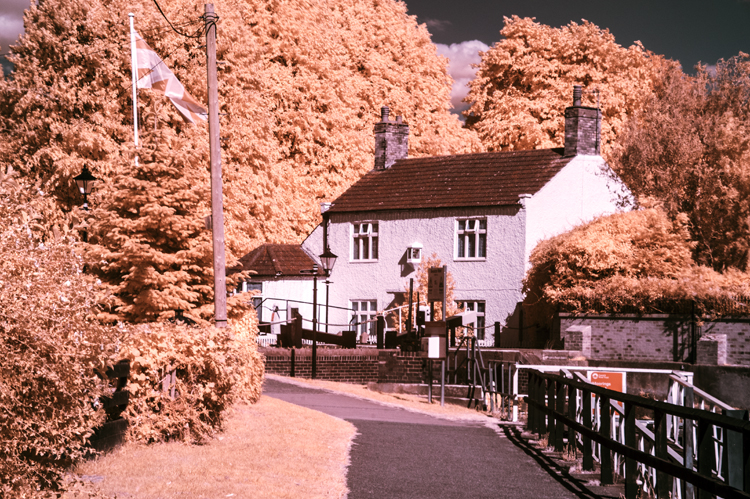
As you might suspect, it filters the light entering the camera in simple terms, to 720 nm and above. It is a very dark filter which makes focusing difficult with a traditional DSLR with a mirror – hot tip – mirrorless cameras don’t have this problem as you are seeing a digital image in your viewfinder from the sensor not a reflection in a mirror. 720 nm is the popular choice for infrared, in fact it is difficult to get other frequencies if you are on a budget. Here are some examples of how my early efforts of using this filter turned out after processing them by channel mixing and layers adjustments that I described in my previous post.
And here is the same image after I applied a hue adjustment of – 60
The people from whom I bought the full spectrum camera showed an example of an image where the filter used was a Cokin Orange filter. I already had one of those from my old black and white film days, so I thought that I might give it a try instead of the 720 nm filter (the orange filter gives filtration of about 590 nm. Here are my results:-
At around 590 to 625 nm, quite a lot of the visible range gets recorded and so lends itself to lots of experiments with the sliders and I do like to experiment and so, it seems, do many other exponents of coloured infrared photography – it is really a bit of a mixture between infrared and the visible spectrum photography, but it does give interesting results.
There are manufacturers who produce variable frequency infrared filters. One such filter is the Hersmay Infrared 6 in 1 adjustable Infrared pass filter – 530 nm to 750 nm. Basically, it screws onto the front of the lens and then you twist the filter to increase or decrease the minimum wavelength (I am using frequency and wavelength interchangeably). Here is the filter which I bought on Amazon at a fairly reasonable price:-
It is very useful but I did find the images quite soft, especially at the 750 nm end – it is a compromise but matters improve at low sensor sensitivity (iso 100). Some of the images created using this filter:-
530 nm530 nm with hue 180 – that is plus or minus.530 nm530 nm – hue minus 60640 nm640 nm hue minus 67640 nm hue plus 40.750 nm750 nm hue plus 22
You will see from these examples that there is more variation on colour in the lower fregencies of light as more of the visible spectrum of light is recorded by the sensor. Filters are available in the range of 850 nm to 900 nm but images created with them will almost all be converted to black and white images, indeed you could argue that even 750 nm would probably be better as bleack and white. These higher frequencies produce the most crisp and contrasty black and white images of all so it’s “horses for courses!”
You can also get filters which fit snugly inside your camera, behind the lens but in front of the sensor. They are available in a range of frequencies – I believe that they are very good quality but also very expensive. Do a search for Kolari infrared filters to find out more (Kolari also do a range of filters for in front of the lens too).
Finally, you could put an infrared filter such as the Cokin P007 720 nm and take photographs. I tried it but exposure was a problem due to the filter which favours the visible spectrum. With long exposures you will get infrared images but use a tripod! Many people do this but I found the very long exposures limiting.
So:-
Converted cameras with dedicated filter.
Pros:-
No need to buy extra filters.
Normal exposure times
Excellent quality images
No need to carry lots of equipment
Cons:-
Limited to one frequency
Less flexible option
Camera is a “one-trick-pony”
Full Spectrum Camera.
Pros:-
Flexibility over which part of the spectrum of light you use.
Changeable filters
More variety of images possible
More scope for experimentation
Cons:-
You have to have a range of filters to provide that flexbility
You have to carry more gear (filters)
You would realistically have to use an anti ultraviolet filter to use as a normal camera
The sensor picks up more red than a normal camera in many cases.
Un-adapted camera with an Infrared Filter.
Pros:-
You can use your normal camera as long as it can hold filters.
Cons:-
Long exposure times
Probably need a tripod to get the best out of it.
Effects of long exposure – blurred water, birds, clouds, trees
One final word. It is possible to convert any camera to work with infrared as a full spectrum camera. With the dedicated IR filter conversion, it would also be necessary to source a say 720 nm replacement filter – I would like to add that any conversion is best done by someone who knows what they are doing. If you are going to choose full spectrum or an un-adapted camera, you will need some method of attaching a filter, so realistically, you are probably best with a DSLR or Mirrorless camera.
I’ll show you more of my images later. Hurry back for the next installment and have a great day!
In my post, I wrote about how I fell in love with infrared photography and how for years I converted my images to very stark, contrasty black and white images. I was very pleased with them but recently, I started to see more and more infrared images that were in wonderful and strange colours. I decided to find out how these images were produced. Todays post is about some of the ways that can be achieved. One thing that I found was that there is plenty of room for experimentation and the way that I am going to demonstrate is only a starting point.
The methods that I describe involve working on RAW files in Lightroom or Camera Raw in Photoshop. You could use .jpgs from your camaera but you will have very limited control over the end product. To do what we are going to do, use the RAW files.
First you have to create a camera profile which you will need to get the best effects. Lightroom and Photoshop use Adobe Standard which gives very different results for the file that you will work on in image editing.
You will only have to create a Camera Profile once. After it has been created it will appear automatically in both Adobe Camera Raw and Lightroom if you have it.
Here is how to create your Camera Profile in Camera RAW in Photoshop:-
First, open your RAW file in Photoshop. This will automatically open up Camera Raw.
Save the file as a .dng file in a convenient place.
Next open up DNG Profile Editor. If you don’t have DNG Profile Editor you can download it from here:-
Or search online for Adobe Digital Negative – it is a free utility.
When you open DNG Profile Editor open your .dng file from where you saved it.
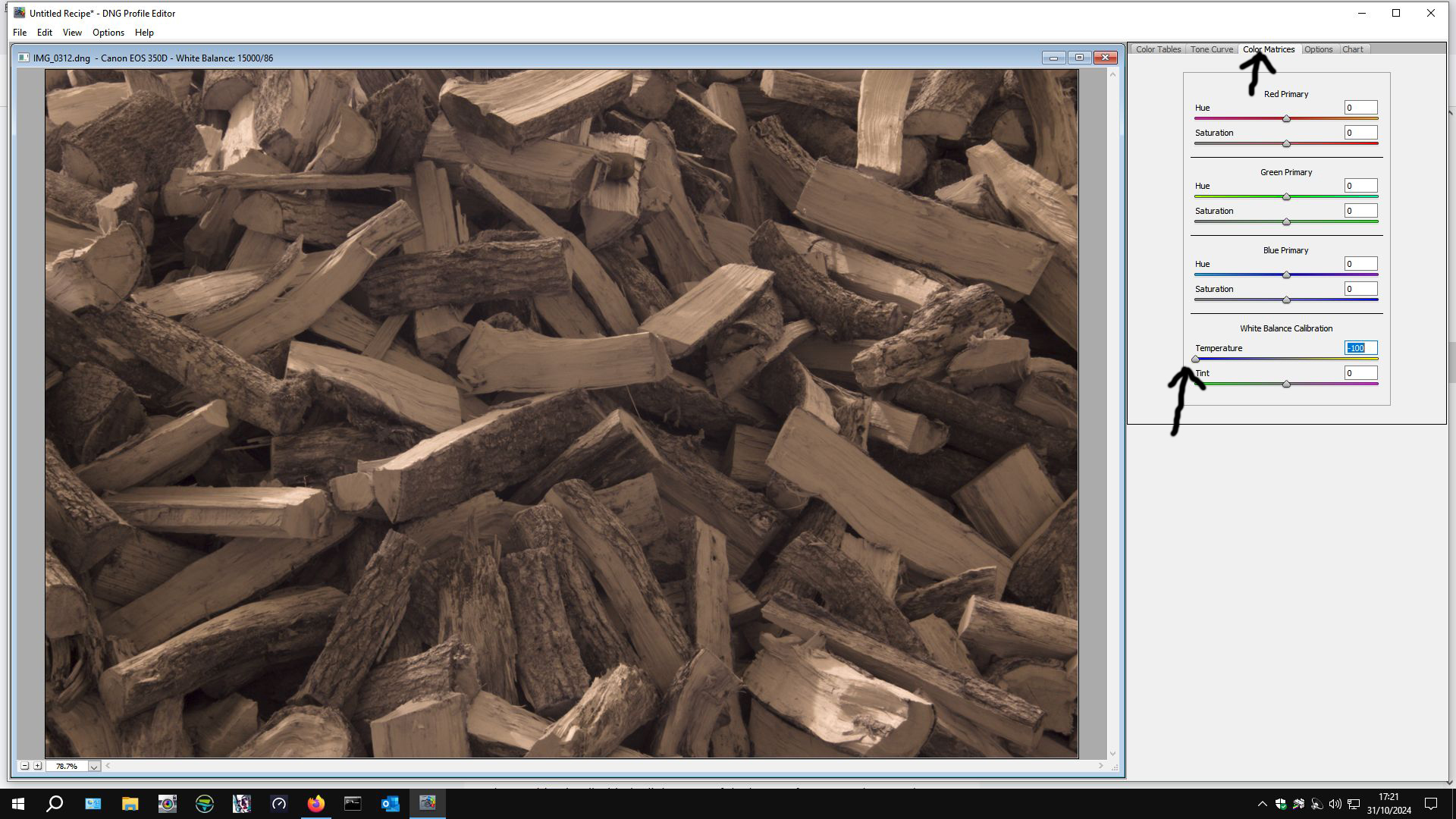
When it opens up, go to the color matrix tab on the right-hand side.
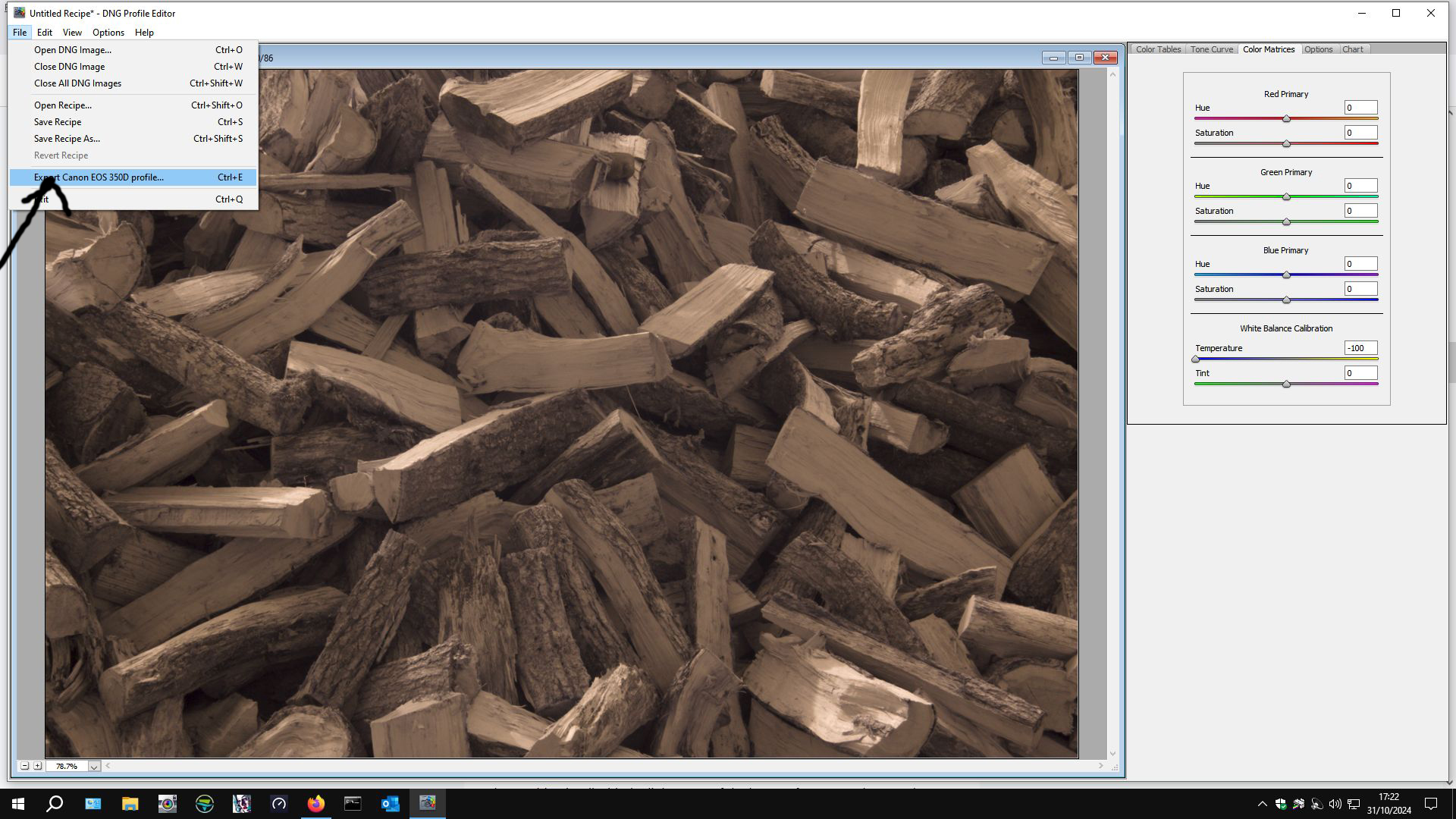
Then slide the temperature slider over to the left. Some people say to -90, others -100. I set mine at -100. Then export the profile – DNG Profile Editor will have read which camera you have used and this will form part of the profile name.
Navigate to C:\Users\<<your username>>\AppData\Roaming\Adobe\CameraRaw\CameraProfiles\ and save your camera profile in there. It comes up with a title for your profile but the middle part says “untitled”. You can customise the title – it allows for multiple profiles for the same camera to be created.
A word of caution \AppData\ is a hidden file so you may have to “show hidden files” within your file options in Control Panel. If you don’t know how to do that, there are many good online resources that will help you to do that.
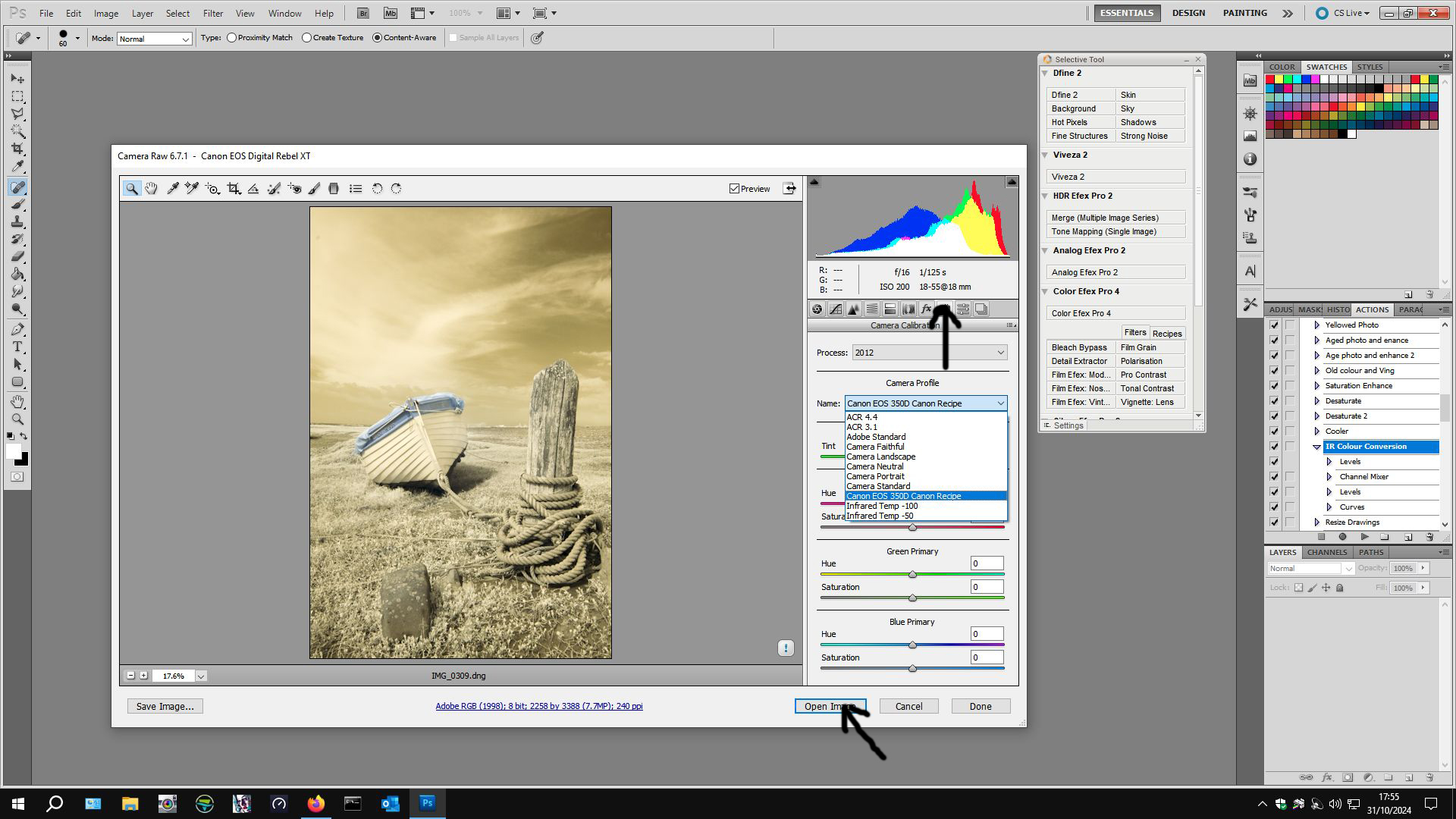
If you have used Photoshop and Adobe Camera Raw, open your .dng file in Photoshop again. Camera Raw will open up again, this time go to Camera Profiles in Camera Raw (arrowed):-
From the drop-down list click on the camera profile that you have created then click Open Image (second arrow) and your image will open in Photoshop.
Instructions for creating a Camera Profile if you use Lightroom.
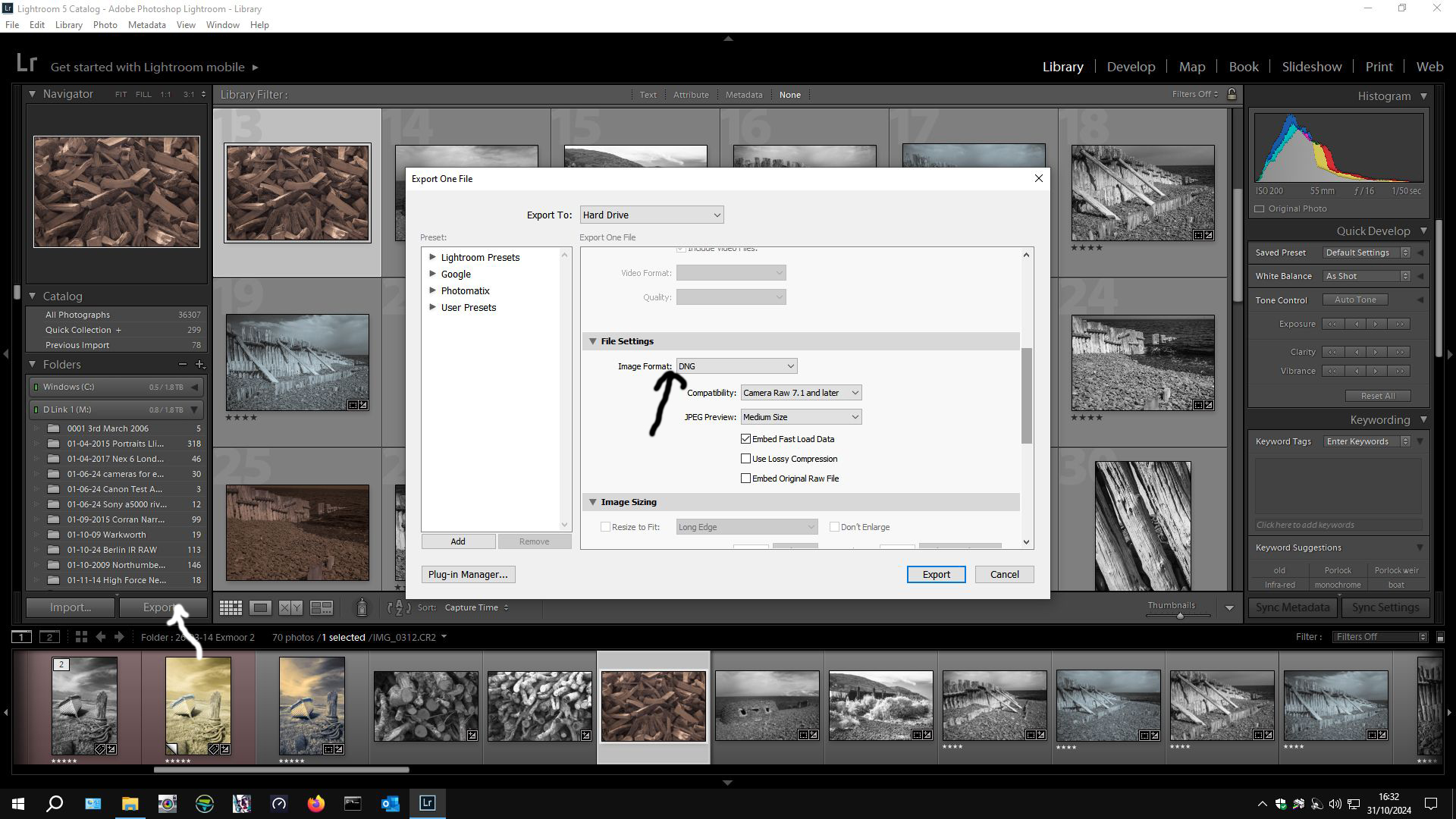
Import your RAW files into Lightroom as usual. Choose one file and export it as a .dng file and remember where you saved it to.
Then open DNG Profile Editor as before and create your Camera Profile. Restart Lightroom and then edit the rest of your .RAW files using this camera profile instead of Adobe Standard.
Camera Profile is found at the bottom left hand side (arrowed). Make whatever adjustments that you want to make – I usually click “auto” because any other adjustments can be made in Photoshop. I sometimes tweek “clarity”. If part of the image is “blown out” I adjust white levels. It is a very individual thing – this is my way, there is no one way – experiment. Then I export the file using what ever format you like. I usually export as .TIFF files at 300 dpi for best quality but if you have Lightroom, you will know how you like to export your files.
Whatever way you have created your Camera Profile, open them in Photoshop to work on them. If you have gone the Photoshop – ACR route, open your RAW file in photoshop and ACR will open, apply the Camera Profile then Open Image. The image will open in Photoshop ready to be worked on. If you went the Lightroom route, open your saved file in Photoshop ready to be worked on.
Drum Roll…..
Once in Photoshop (or any other Photo editing suite capable of Channel Mixing):-
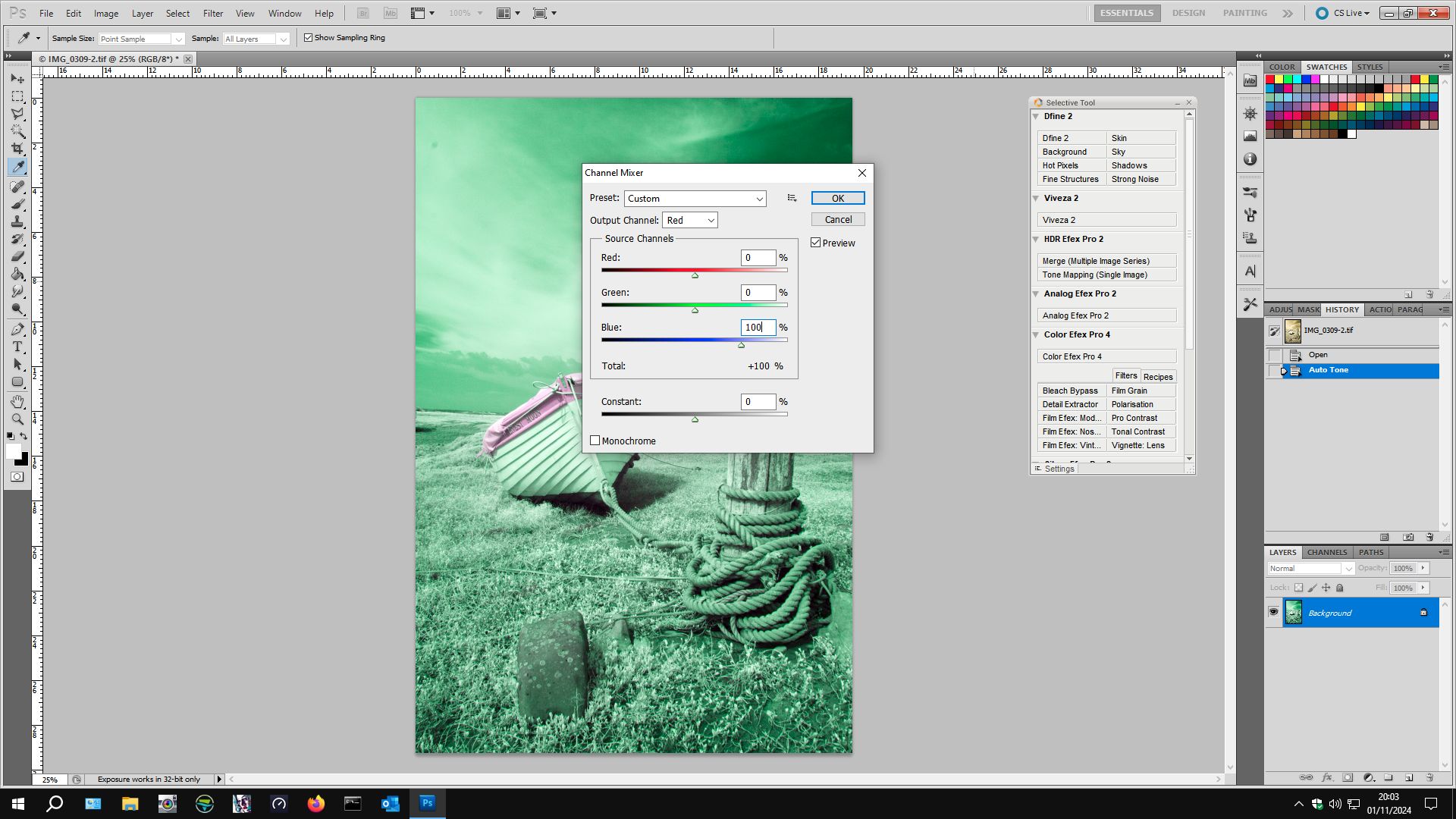
Image > Adjustments > Channel Mixer.
Select Red from the drop-down list. Slide the Red slider to 0 from 100 and the Blue slider to 100 from 0.
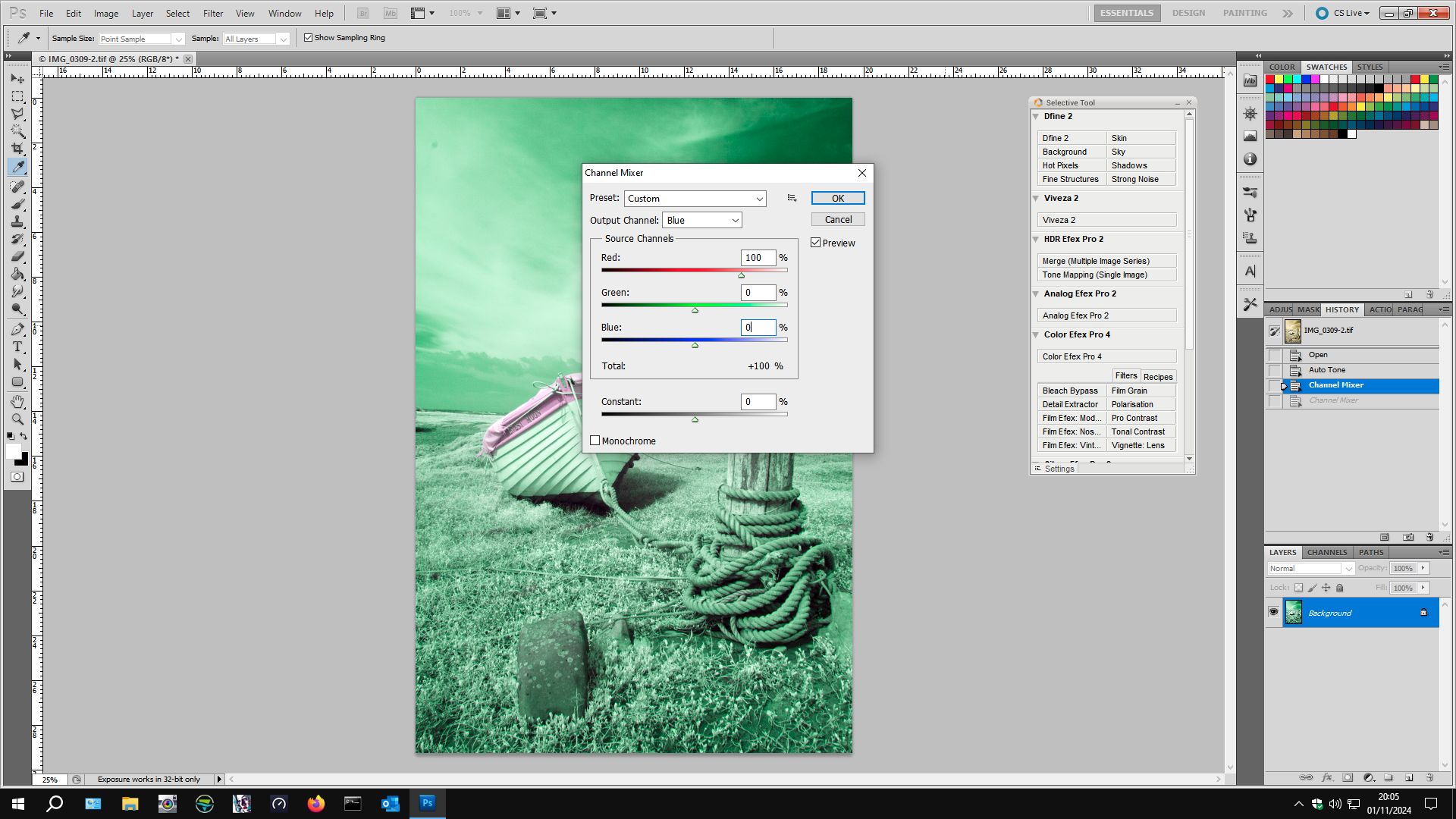
Select Blue from the drop-down list and move the Red slider to 100 from 0 and the Blue slider to 0 from 100. The image will turn funny colours. Click OK.
Next, open image > adjustments > levels.
Select Red from the drop-down list (Default RGB) and move the right slider to 220 from 256. Select the Blue Channel and move the middle slider to 0.70 from 1.00. Click ok.
Below is my file from Lightroom (This is how it looks when you open it from ACR too after Camera Profile has been applied).
The file that you start to work on in your image editing software will look something like this. You could convert it to black and white but we are going to give it some colour to produce something like:-
This is how this file turned out after I applied the Channel mixing and Layers adjustments described above were applied.
In addition to these basic adjustments, I also like to apply an Auto Tone before Channel Mixing and Layers adjustment to give it a bit more punch. After applying Channel Mixing and Layers, you might like to apply Curves to improve contrast (or reduce it). You could apply other basic adjustments “to taste”. One way to change the colours dramatically with “artistic effect” is to alter the Hue (image > adjustments > Hue/Saturation) – have a play by experimenting with positive and/or negative values for hue to get different effects. You might want to apply a saturation and/or brightness adjustment but I find that I get better results with Brightness/Contrast Curves, or Vibrance.
There are many ways to create coloured infrared images. This is just to get you started and it is my way, this is how I started. Internet searches will yield many ways, based more or less on this basic editing technique, to create fantastic coloured infrared images so my advice is start doing what is described here and then start to experiment with your images, search the internet for people who excel at this. A couple of names to search for:-
Rob Shea
Matthew Stuart Piper
Both have websites with lots of examples of excellent work.
Next Post, I will give more examples of my infrared images of which I have created coloured versions
What do you think of infrared photography? Most people associate it with contrasty black and white images but increasingly we are seeing lots of coloured infrared images – some people dislike them as they don’t look normal – it is true that they challenge ones perception of colour but I love them and I wanted to tell you about my journey with digital infrared photography. It began in 2009 when I attended a photographic workshop with Lee Frost (Photographer, Photo Mag journalist, author and all round nice guy). He loaned out his Canon 20D which had been converted to record the infrared spectrum of light – I use the term loosely, as I’ll explain later. There is a filter over the digital sensor which only allows visible light to hit the sensor – your pictures would have a strong red look without it. With a converted camera, this filter is removed and replaced with a filter that allows mostly the near infrared spectrum. Light travels in waves, as we know; we usually refer to them by the wavelengths. The wavelengths of the “colours” of visible light are as follows:-
Violet 380 nanometers (nm) to 450 nm
Blue 450 nm to 485 nm
Cyan 485 nm to 500 nm
Green 500 nm to 565 nm
Yellow 565 nm to 590 nm
Orange 590 nm to 625 nm
Red 625 nm to 750 nm
The most common replacement filter is probably allows 720 nm and above. After conversion, you have to reset the white balance and it is possible to make you camera produce black and white .jpgs straight out of the box.
So, I borrowed Lee Frosts converted camera and then played with the RAW files in Lightroom when I got home, and I was hooked. I quickly purchased a second hand Infrared converted camera and set about producing very contrasty black and white photographs. I loved it. I continued to do so for several years.
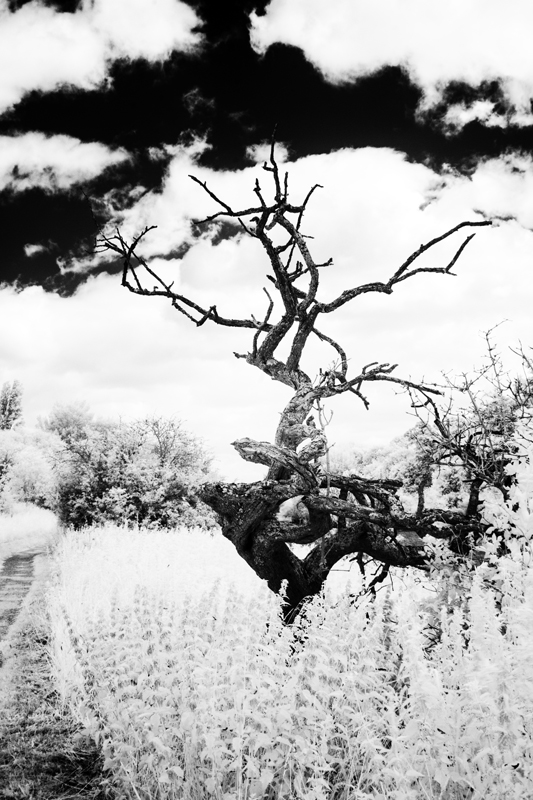
This image was created at Porlock Weir in West Somerset and I processed the RAW file for this image to make it black and white in Lightroom. There are many different ways to do this but I think that I just turned the saturation slider right down and boosted the contrast.
When you open out the RAW file in lightroom, it will often have a brown or bluey grey colour and there may be some colour present. I hadn’t set up a camera profile at this stage. I will reveal a method for doing that in a later post, but at this stage, I was just playing. This is an example of how my RAW files looked:-
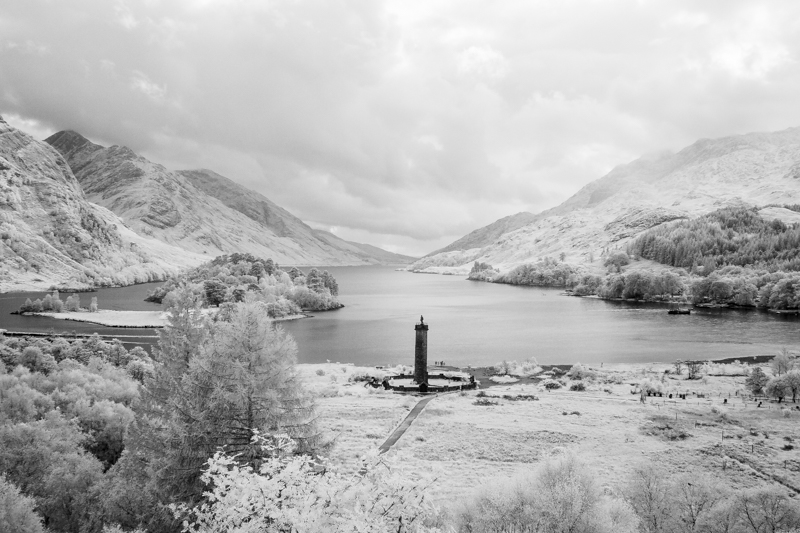
Other examples of my black and white infrared images:-
Recently, I discovered how to process my infrared RAW files to produce coloured infrared images and I will write about those soon – how to create them (my method, at least), I will show examples of what happened when I processed these images as colour and what I did next. Please come back soon.
Life is very busy at the moment – lots of distractions – and I am having difficulty keeping focus on progressing my photography. Often at times like this I go over my older stuff with the intent of giving the old stuff a make over – edit them in a different way to produce something new; I quite like messing around in Photoshop and Lightroom so this quite suits me, although some might say that I should just get out and take some different photographs but somehow with everything else (life) going on it is not always that simple. I am off to Normandy in a few weeks and I have great plans for that trip so watch this space. In the meantime I have been going over my old (2011) Northumberland photos and thought that I would share with you some that I have converted to Monochrome (mostly black and white but I do like the toned effect too) within the Photoshop plug-in Nik Silver Efex pro. I really like these – I wouldn’t be showing you otherwise – and they have had lots of positive feedback when I have posted them on 500px, Pinterest, Facebook, Fine Art America and Photo4Me, so I hope that you like them too.
Lobster pots stacked on the quayside.
Abstract river flow – water taking on a milky form through long exposure.
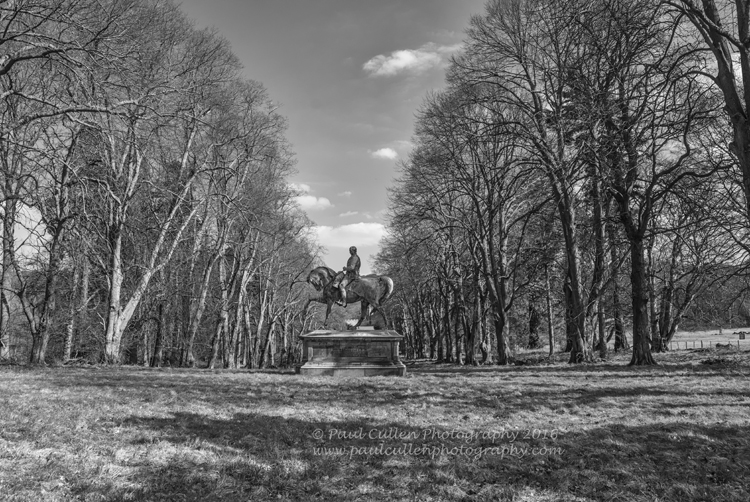
Statue of Field Marshall Viscount Hugh Gough, K.P., GCB, GCSI, PC, who fought many campaigns oversees, now situated at Chillingham Castle, Northumberland.
Statue of Field Marshall Viscount Hugh Gough, K.P., GCB, GCSI, PC, who fought many campaigns oversees, now situated at Chillingham Castle, Northumberland.
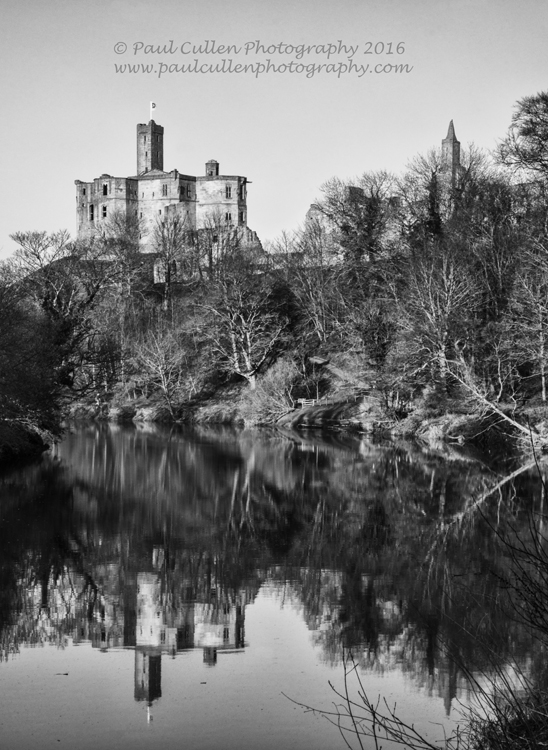
Warkworth Castle, Northumberland.
I love Northumberland and will go back there to capture its natural beauty again but converting to black and white or toning the images give the images a different dimension based on tone and contrast, light and shade rather than colour which changes how we view them.
There are many subjects that I want to tackle at some point and this is one of them:-
Wine bottle and glass in low light.
Low key photograph of a wine bottle and glass.
Wine glass and bottle in low light.
Ornate wine glass.
A rim-lit bottle and glass – but I wasn’t sure of the best way of achieving it. I was flicking through this book looking for inspiration (not necessarily looking to fulfil this ambition):-
when I came across the answer, or at least one answer (page 176), I decided to get to work. Lee Frost recommends a large backlight with a strip of black material covering the middle; I used a bit of black card instead as my black material was too heavy but I think that I achieved a pleasing result – here is my set up:-
I have blinds in my studio and so I pulled them all down. Lee describes using “a couple of bottles of decent full-bodied plonk (knowing the contents would have to be consumed afterwards)”, I cheated; I used blackcurrant squash, and a cheap one at that! I didn’t drink the squash afterwards – it only has to look the part right?
I did take a light reading but this was only a ball-park figure as the light meter will give me a mid-tone (18% grey for those who need more detail) but I knew that I was dealing with extremes of the spectrum and not mid ranges – I tried various exposures around me metered reading until I was happy. Aperture was set at f16 so that I had sufficient depth of field and adjusted the strength of the octibox and flash head to get my exposure. I then tried a selection of compositions – the ones that I have shown are the ones that I was happiest with.
Post processing consisted of fiddling with contrast, saturation and exposure in Lightroom – I like to selectively sharpen my images so that large swathes of one colour, in this case black, don’t end up generating digital noise. I also made sure that I had absolute black when appropriate, for the same reason. I output my files from Lightroom as TIFFS in case I want to edit further in Photoshop.
I decided to try then as monochome images too; again I was pleased with the results:-
Wine bottle and glass in low light – monochrome with a slight yellowed tone.
Low key photograph of a wine bottle and glass in high key monochrome.
Wine glass and bottle in low light – monochrome with cool blue tones.
Ornate wine glass – in monochrome.
I created monochrome images in Nik Silver Efex pro. I gave each a different treatment; one has a sepia effect, anther a cool blue tone whilst the other two are black and white.
It is not that easy to see the subtle changes in treatment here but they can be seen in greater detail in my My 500px Fine Art Gallery here (the colour versions are there too).
My first sale on Picfair. Just click the link to see what I’m making such a fuss about. You might want to look around to see what else I have on offer.
The above image was picked for a Picfair award earlier this week. It was picked 16th out of 25 in an Online exhibition called “Hot and Cold” and it has been trending on their home page all week. I am very pleased. It has now had 639 views – the most by far of any of my Photographs on the site.
If that wasn’t enough, I found out this evening that I have made a sale of another of my photographs on Picfair – this time it was of a background of backlit sliced cucumber – it looks way better than it sounds.
My image “Surfer at Lynmouth” has been chosen by Picfair as one of 25 to receive special attention in their “Hot and Cold” themed presentation and has earned me a Picfair award – I am really excited and what is more, it has attracted a lot of attention as a result. Thank you Picfair.
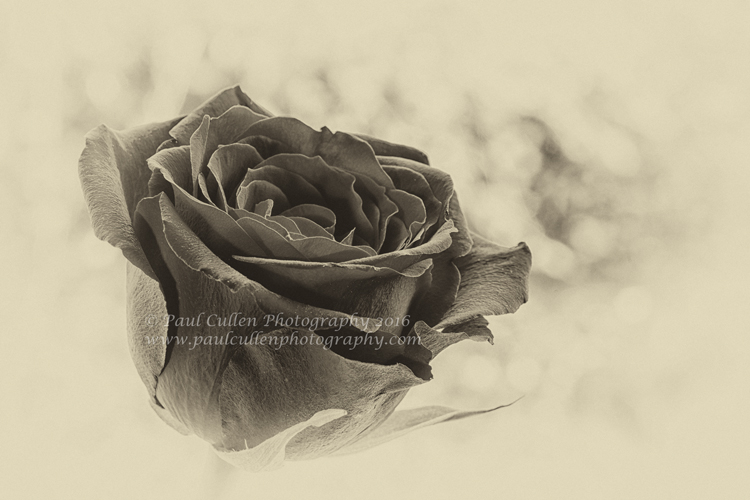
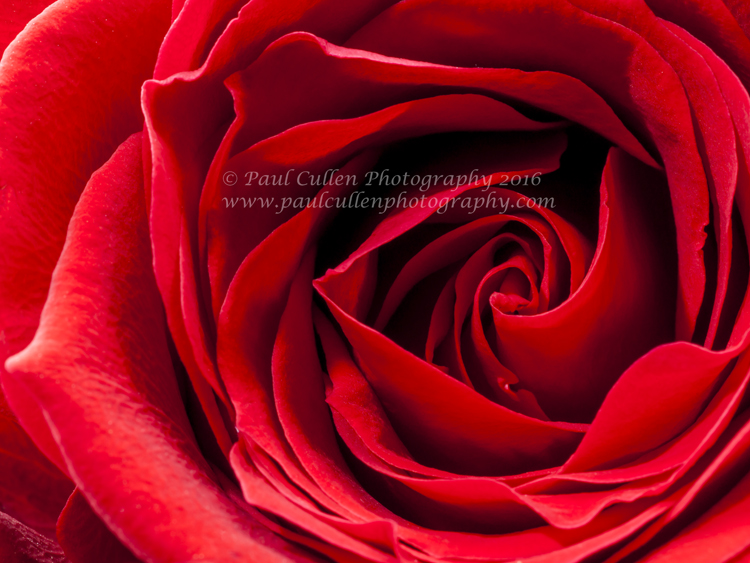
I have continued the floral theme and having done with the Tulips decided to look for another subject – I didn’t have to look very far so soon after Saint Valentine’s day – I spied a bunch of roses on the window sill that had been received by my wife on the 14th of February. I must admit being a little curious where they came from – maybe I should investigate, but I have been so busy. ( I know where they came from really, and this time they were bought with her as the first thought – honest!)
So there were these roses and it was a bright and sunny day, so I decided to take them outside and photograph selected ones against an out-of-focus green hedge, but it turned out to be a bit breezy and I was going to have to use a very slow shutter speed if I was to use an iso of 100 for maximum quality – I wanted to shoot in the shade as the direct sun would have given harsh shadows. I decided to photograph them on a window sill inside of the house. I needed something to fill in the shadows on the inside because there was too much contrast between the window light and the inner side.
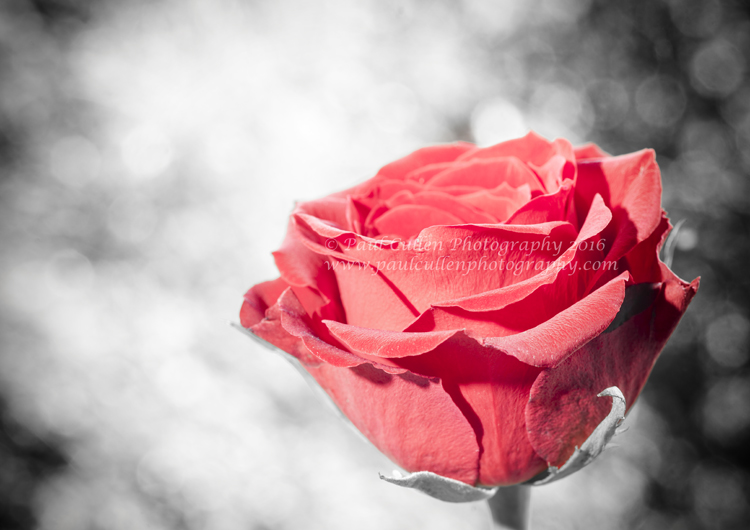
Red Rose colour popped.
At first, I tried a home made reflector (flat baking tray covered in crinkled cooking foil) but I wasn’t quite getting the effect that I was looking for so I used used a speed light type camera flash connected to my camera with a curly cord so that I could move the direction of the light around for best effect.
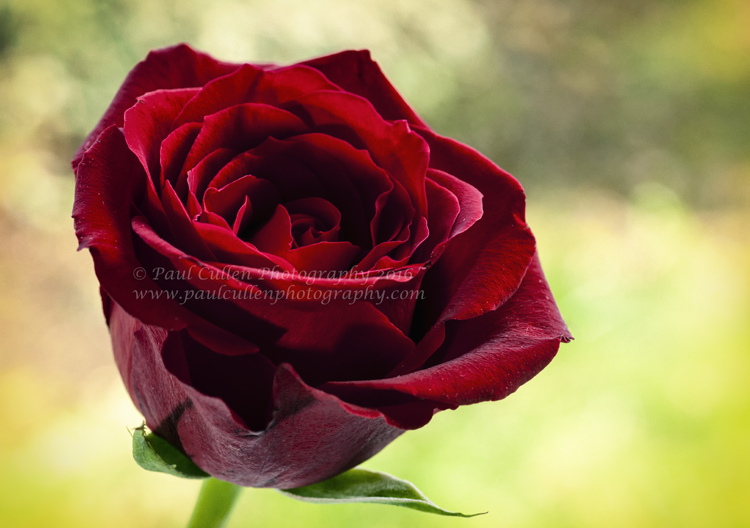
Red Rose Close-up detail saturated with differential focus – Landscape format
In the end I really only used one or two of the roses for this project, partly because the leaves of some of the roses were starting to split – you often don’t notice that sort of thing unless you get very close up, or are editing the results at 100%! I have posted a few here but to see the whole collection, visit my website using the link below. You will find them on pages 7 & 8 – Enjoy!































 Paul Cullen Photography